How to Upload Your Own Fonts to Canva: A Step by Step Guide
Video Transcript:
How to Upload Custom Fonts to Canva
Have you ever found the perfect font for your brand, only to realize it isn’t available in Canva’s library? If you want to keep your designs consistent and professional, using your specific brand typography is non-negotiable.
Today, I’m going to show you exactly how to upload your own custom fonts to Canva in just a few clicks.
Please note that this feature is currently available for Canva Pro, Canva for Teams, and Canva for Education users.
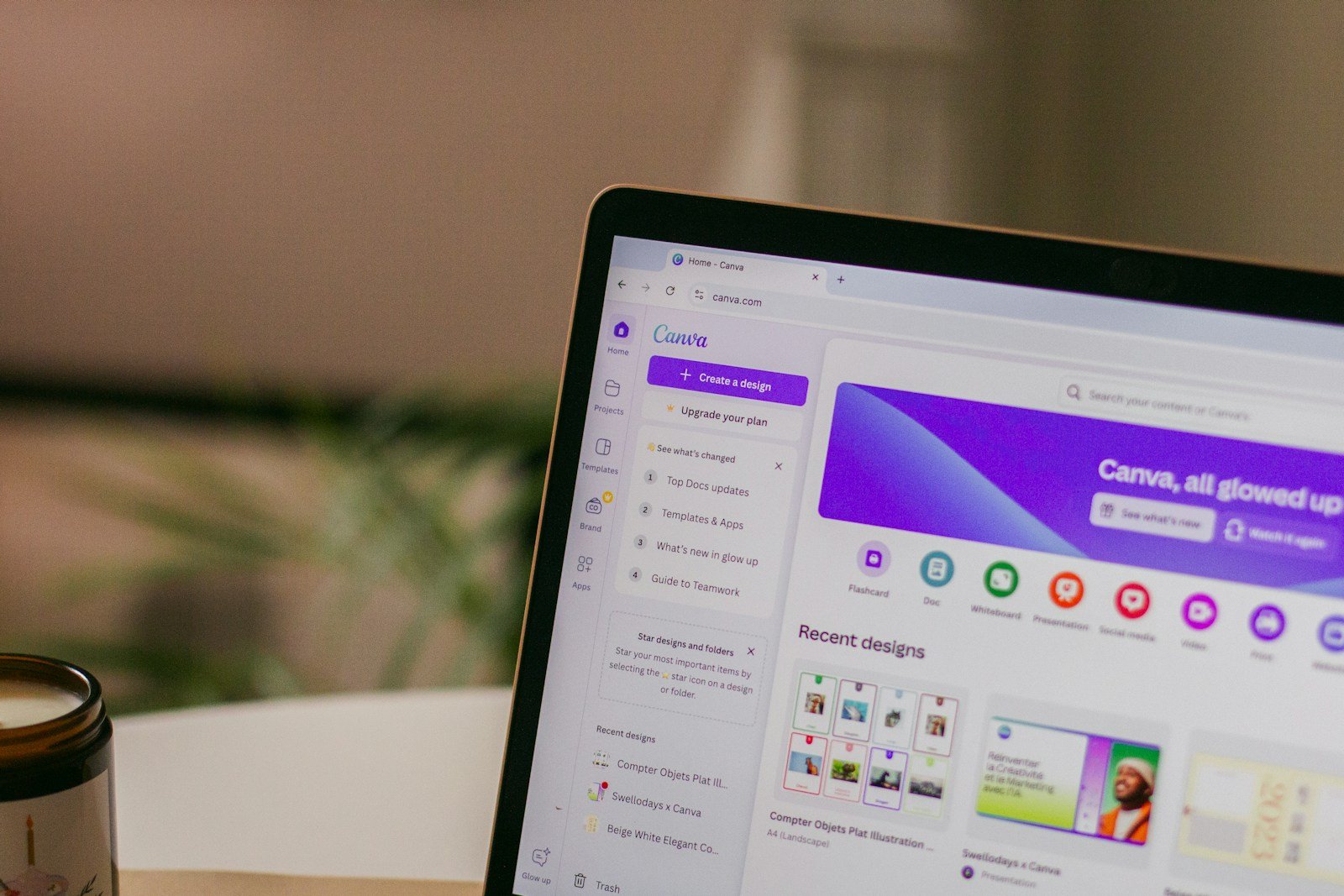
Start by logging into your Canva account and heading to the home page. On the left-hand sidebar, look for the tab labeled ‘Brand’ or ‘Brand Kit.’ If you are part of a team, this might be under the ‘Teams’ section. Click on it to open your brand management dashboard.
Once you are in the Brand Kit, you’ll see sections for your logos, colors, and fonts.
Scroll down to the ‘Fonts’ section. Here, you will see a button that says ‘Add new’ or an upload icon depending on your version. Click that button.
A file browser window will pop up. Navigate to the folder on your computer where your font file is saved. Canva generally supports Open Type (OTF), True Type (TTF), and Web Open Font (WOFF) formats. Select the font file you want to upload and click ‘Open.’
Before the upload finishes, Canva will ask you to confirm that you have the rights to use this font. This is an important step to ensure you are compliant with font licensing laws. If you have the license, click the confirmation button to proceed.
Wait a few seconds for the upload to complete. Once it’s done, you will see your new custom font listed under your ‘Uploaded Fonts’ section.
To make sure it works, go back to the home page and open any design. Click on a text box, open the font dropdown menu, and scroll down or search for the name of the font you just added. It should be right there, ready to use.
And that’s it! You can now use your custom typography to make every design uniquely yours. Thanks for watching, and happy designing.